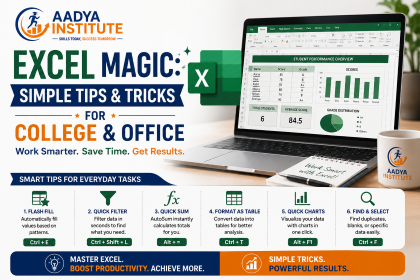
Excel is more than just a place for numbers—it’s a smart tool that makes work, study, and life easier for everyone. Students use it for assignments, budgeting, or event planning. Professionals use it for reports, calculations, and managing data. Whether someone is totally new or knows their way around, learning simple tricks can save time and make tasks more fun.
In this blog, find basic and powerful Excel tips sorted for students and working pros. The best part? These tricks work for most versions and don’t need fancy language, just simple steps anyone can follow.
Why Excel Matters?
Excel helps organize all types of information: grades, budgets, inventories, sports schedules, invoices, and more.
Knowing shortcuts and smart features saves hours every week.
Many companies expect basic Excel skills—starting now gives a big head-start for jobs and internships.
Main Points: Useful Excel Tips & Tricks
1. Keyboard Shortcuts: Do Work Faster
Ctrl+C / Ctrl+V: Copy and Paste any content.
Ctrl+Z / Ctrl+Y: Undo or Redo mistakes easily.
Ctrl+S: Save in a flash.
Ctrl+Shift+Plus (+): Add new rows or columns, super quick.
F4: Repeat your last action or freeze references in formulas, very handy.
2. Formulas Made Simple
SUM: Add numbers with =SUM(A1:A10) for totals.
AVERAGE: Get easy averages with =AVERAGE(B2:B9).
COUNTIF: Count things in a list, like attendance: =COUNTIF(A1:A25,”Present”).
IF Formula: Decide if something matches your need, eg: =IF(C2>50,”Pass”,”Fail”).
VLOOKUP: Connect info from one table to another for quick lookups: =VLOOKUP(D2,Sheet2!A2:B25,2,FALSE)..
3. Organize Data With Filters & Sorting
Use Filters under the Data tab to see only what matters, hide the clutter.
Sort columns to find top scores or sort dates with a click.
Find/Replace (Ctrl+F and Ctrl+H) helps fix typos everywhere at once.
4. Conditional Formatting: Add Color to Data
Highlight important cells using colors, like red for late submissions or green for top marks.
Try traffic-light icons: Red/Yellow/Green shapes for quick signal.
Set rules: “If value is above 80%, make it bold blue!”
5. Create Tables, Charts, and Visuals
Turn lists into Tables for easier calculations and sorting.
Make quick Charts (bar, line, pie) to show data visually. Use Insert > Charts, then pick your style.
Try a Gantt chart for project timelines, great for event planning.
Heat Maps in Excel help display values quickly—use conditional formatting for colour scale.
6. Data Cleaning: Remove Duplicates & Split Info
Use Remove Duplicates (Data tab) to clear repeated entries.
Split text into different columns (like names and email): Data > Text to Columns.
Combine cells using the ampersand (&), eg: =A2&” “&B2 for full names.
7. Protect Your Work
Lock sheets and use passwords to keep your info safe (Review Tab > Protect Sheet).
Save backups regularly; Excel can auto-save versions.
Bonus: Excel Tips That Make Life Easier
Freeze Panes: Keep headers visible while scrolling through big lists.
Flash Fill: Type a pattern, and Excel will guess the rest!
Quick Analysis Tool: Instantly make charts, tables, and totals—select your data, look for the lightning bolt icon.
Insert Icons & Emojis: For fun and clarity, use Insert > Icons to add visual markers to sheets.
Find a Sum Quickly: Select numbers, glance at the bottom right for the total—no formula needed.
For Students: Best Uses
Tracking grades, assignments, attendance.
Planning events—budgets, schedules, group tasks.
Sports sheet for teams, scores, and fixtures.
For Professionals: Top Uses
Expense and billing management.
Project tracking and reports.
Analyzing sales leads and business trends.
Conclusion
Learning even the basics of Excel opens up a world of possibilities for students and working professionals. With these simple tips and tricks, anyone can save time, make better decisions, and show info in fun, clear ways. The more practice, the easier Excel becomes. Try a few new tricks every week, and soon, Excel will feel like second nature.
Boost your productivity with Aadya Institute’s Microsoft Excel course. Learn formulas, functions, PivotTables, charts, data analysis, and automation through practical, hands-on training. Build job-ready Excel skills for college, office, and beyond!